Why am I getting incorrect PIN errors?
Last updated: March 30, 2026
Windows Hello PIN
If you are getting the following error message on Windows:
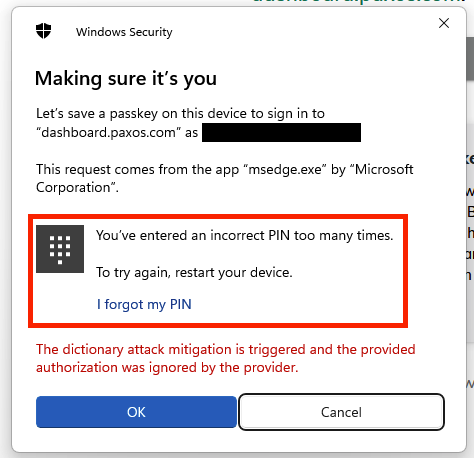
- This tells you that your Passkey is associated with your Windows Hello account; and
- That you have entered the incorrect PIN for your Windows Hello.
To get through this issue, you may explore a few options.
Option 1: Restarting Windows
We recommend you first try restarting your Windows device.
When Windows detects multiple incorrect PIN entries, it locks Windows Hello (and correspondingly, Passkeys) as a security control to safeguard against account compromise. Restarting will unlock your Windows Hello and allow you to re-attempt logging in when you access the Paxos Dashboard site.
When prompted for your PIN, please ensure you're entering the correct Windows Hello PIN on your machine.
Option 2: PIN reset - "Forgot my PIN"
You may see an option that says “I forgot my PIN” in the error dialogue box or below the PIN text box. If so, you can click that option and follow the instructions to reset your PIN, which may involve some form of identity verification. Further details can be found on the official Microsoft site.
Remember to choose a new PIN that is strong and unique, but also something you can remember!
After you've created this new PIN, you can retry accessing the Paxos Dashboard using Passkeys - when prompted, please enter the newly set Windows Hello PIN on your machine.
Option 3: PIN reset - Windows Settings
You may also reset your Windows Hello PIN through Windows Settings. Here's how:
-
Go to Settings: Open the Start Menu and click on the gear icon to access Windows Settings.
-
Accounts > Sign-in options: Navigate to "Accounts" and then click on "Sign-in options" in the left-hand menu.
-
Windows Hello PIN: Find the "Windows Hello PIN" section and click on it.
-
"I forgot my PIN": You'll see a link that says "I forgot my PIN." Click on that.
-
Verify your identity: Windows will require you to verify your identity using your Microsoft account password. This is to prevent unauthorized PIN resets.
-
Create a new PIN: Once you've verified your identity, you can create a new PIN and confirm it.
Further details can be found on the official Microsoft site.
Remember to choose a new PIN that is strong and unique, but also something you can remember!
After you've created this new PIN, you can retry accessing the Paxos Dashboard using Passkeys - when prompted, please enter the newly set Windows Hello PIN on your machine.
How do I check my Windows Hello PIN? Can I reset my Windows Hello PIN?
Unfortunately, there's no direct way to see your Windows Hello PIN. This is a design implementation by Microsoft around Windows Hello for security reasons.
However, if you've forgotten your PIN, you can reset it. Here's how:
-
Go to Settings: Open the Start Menu and click on the gear icon to access Windows Settings.
-
Accounts > Sign-in options: Navigate to "Accounts" and then click on "Sign-in options" in the left-hand menu.
-
Windows Hello PIN: Find the "Windows Hello PIN" section and click on it.
-
"I forgot my PIN": You'll see a link that says "I forgot my PIN." Click on that.
-
Verify your identity: Windows will require you to verify your identity using your Microsoft account password. This is to prevent unauthorized PIN resets.
-
Create a new PIN: Once you've verified your identity, you can create a new PIN and confirm it.
Remember to choose a new PIN that is strong and unique, but also something you can remember! After you've created this new PIN, you can retry accessing the Paxos Dashboard using your passkeys.
Why does this happen? Why do I need to restart my machine?
Microsoft/Windows locks your Windows Hello after repeated incorrect PIN entries and requires a restart generally for the following reasons:
- Protecting your account: Requiring your Microsoft account password ensures that someone can't simply reset your PIN without knowing your primary account credentials.
- Preventing unauthorized access: This helps prevent unauthorized access to your device and the passkeys stored on it.
- Maintaining security: Even if someone guesses your PIN, they still won't be able to access your account without your Microsoft account password.
If you enter your Windows Hello PIN incorrectly too many times, your account will be locked to protect your security. To re-enter your PIN and use your passkeys, you will need to reset your PIN using your Microsoft account password.
When Windows Hello detects multiple incorrect PIN attempts, it triggers a restart requirement as a security control to ensure that someone unauthorized isn't trying to access your account. This security measure